Using clickclick with a Single Apple Account
Send and receive messages with different iCloud contacts tied to a single Apple Account.
Connecting a single Apple Account is the most private and secure method of remotely chatting with your clickclick.
In this guide, you'll assign your iCloud email to your desktop clickclick and use your iCloud phone number on your iPhone.
Use of third party services is subject to each provider's terms and privacy policy.
iMessage settings are found in the iCloud tab on the Configuration sheet.


Select iCloud Contacts for your Mac
Open the Messages app on your Mac.
In the Menu Bar, click Messages and select Settings… to open your iMessage settings.


Select the iMessage tab.

Select the contacts that clickclick will send messages from.
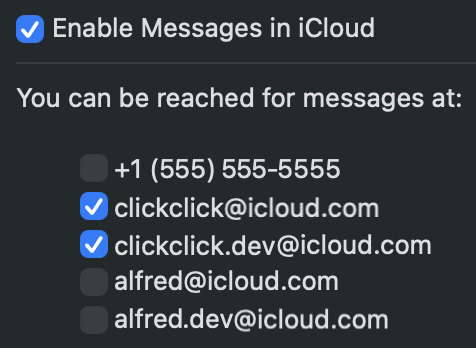
Deselect all other contacts you'll use on your iPhone and other iCloud-connected devices.
Select iCloud Contacts for your iPhone
Open the Settings app on your iPhone.
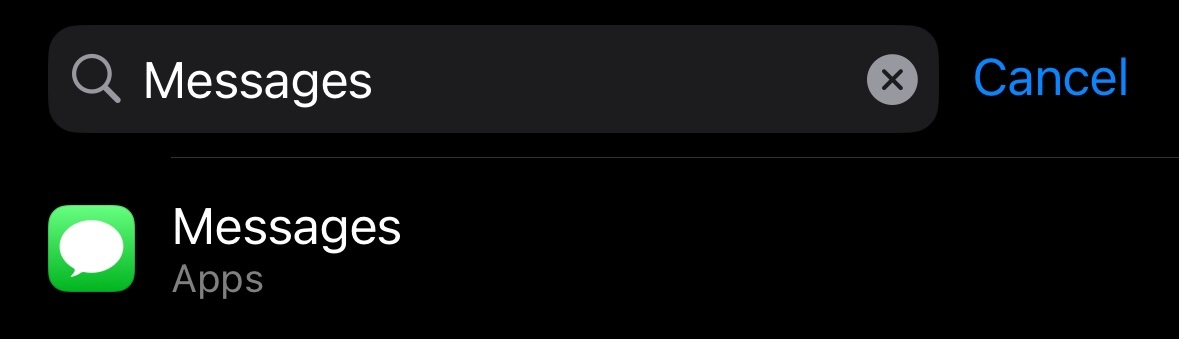
Type "Messages" in the search bar and select the Messages app settings.
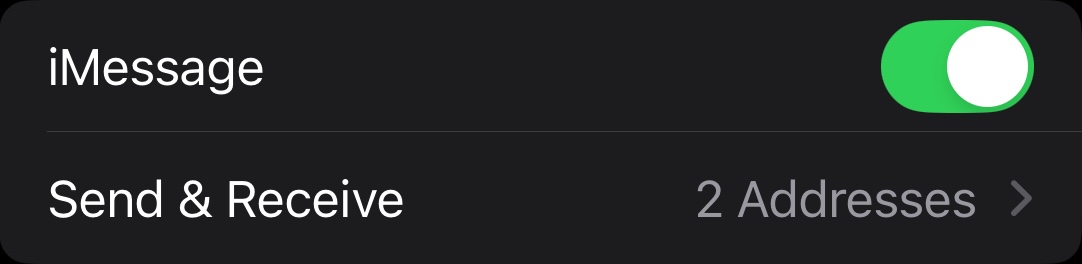
Tap the Send & Receive setting.
Select the phone numbers and emails you want to use on your iPhone.
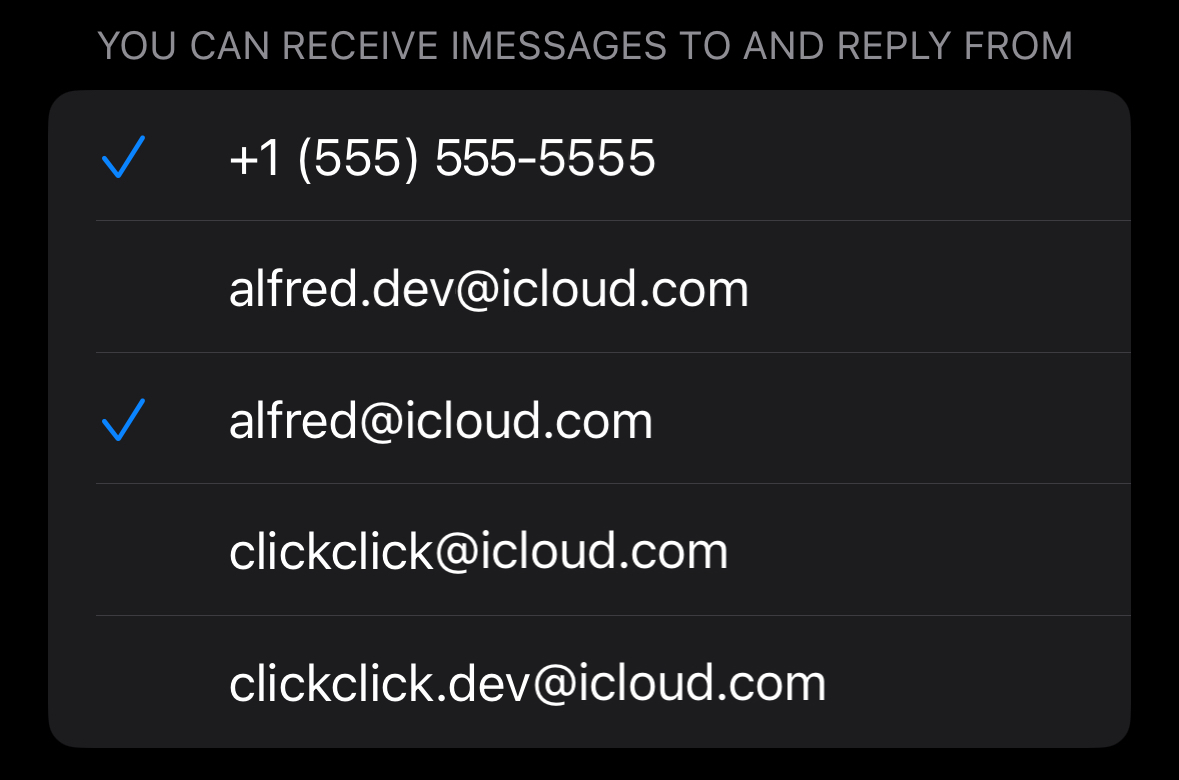
The contacts you select on your iPhone must be different from the ones you selected on your Mac.
Send a Message
Now that you've separated iCloud contacts between your desktop and mobile devices, you can start messaging clickclick directly from your iPhone.
Continue with Set up iMessage for clickclick to finish setting up clickclick on your Mac.